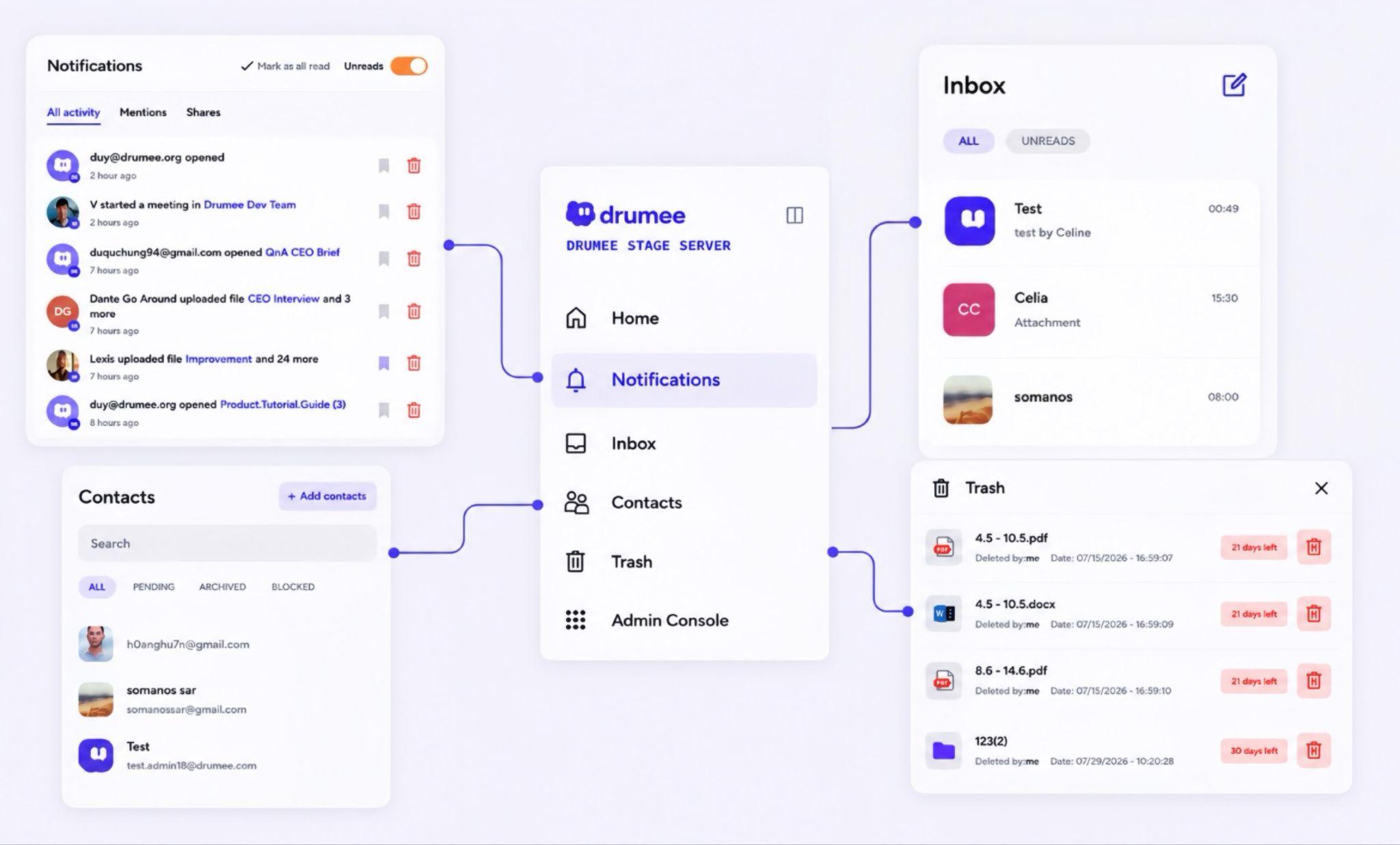
1.1 Home Manager
Learn Drumee board basics.
| Feature | What it does |
|---|---|
| Home | Landing view - recent and pinned workspaces at a glance. |
| Notifications | Everything that needs your attention: mentions, task assignments, share requests. |
| Inbox | Direct messages and shared items sent specifically to you. |
| Contacts | People you collaborate with across workspaces. |
| Trash | Recently deleted files and folders, recoverable before permanent deletion. |
| Workspace List | All folders and workspaces you are a member of. |
1.2 Settings
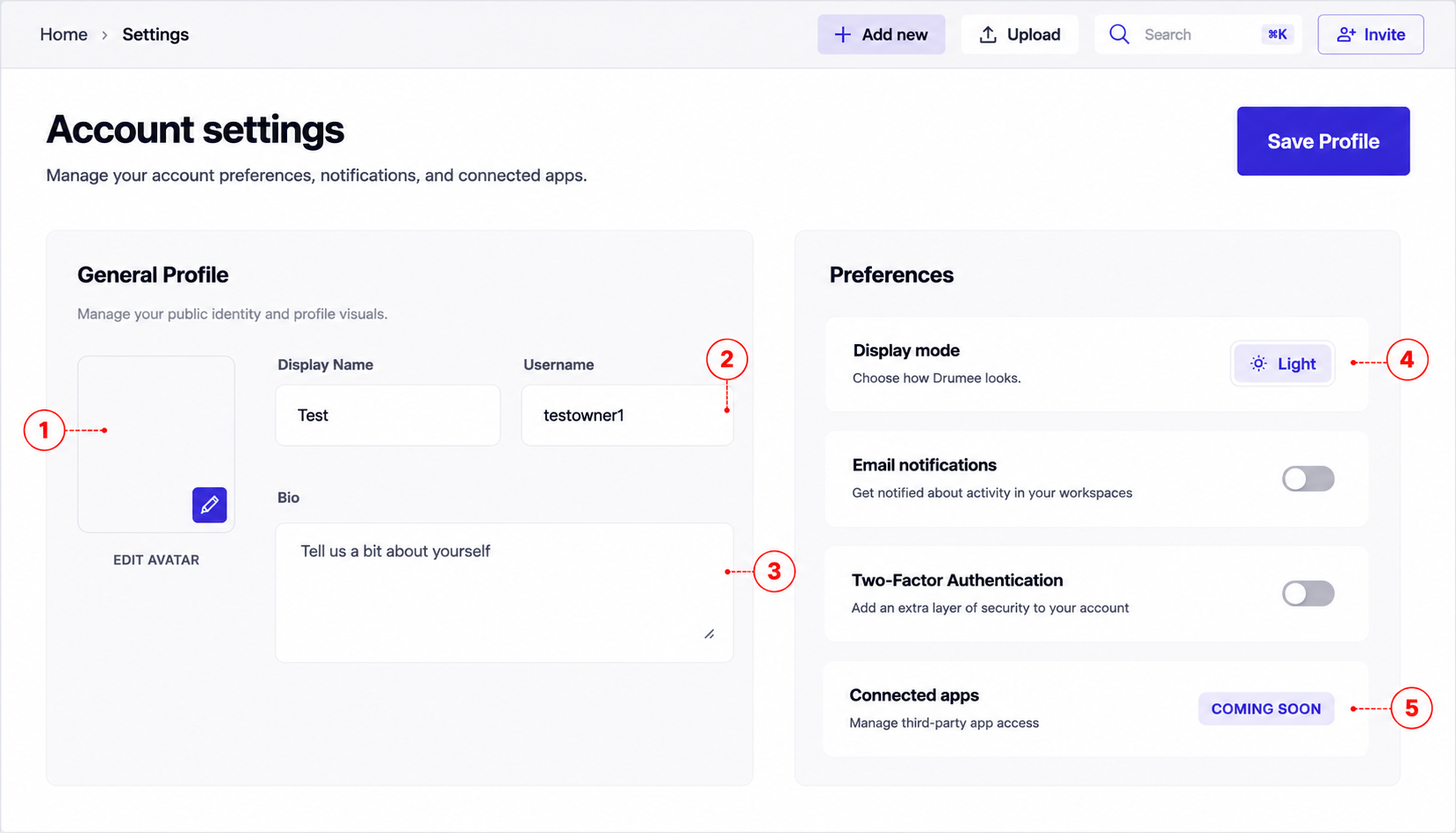
- Profile: Upload or change your avatar.
- Username: Edit your public profile information.
- Bio: Add a short bio to introduce yourself.
- Display mode: Configure appearance, notifications and security settings.
- Connected app: Coming soon
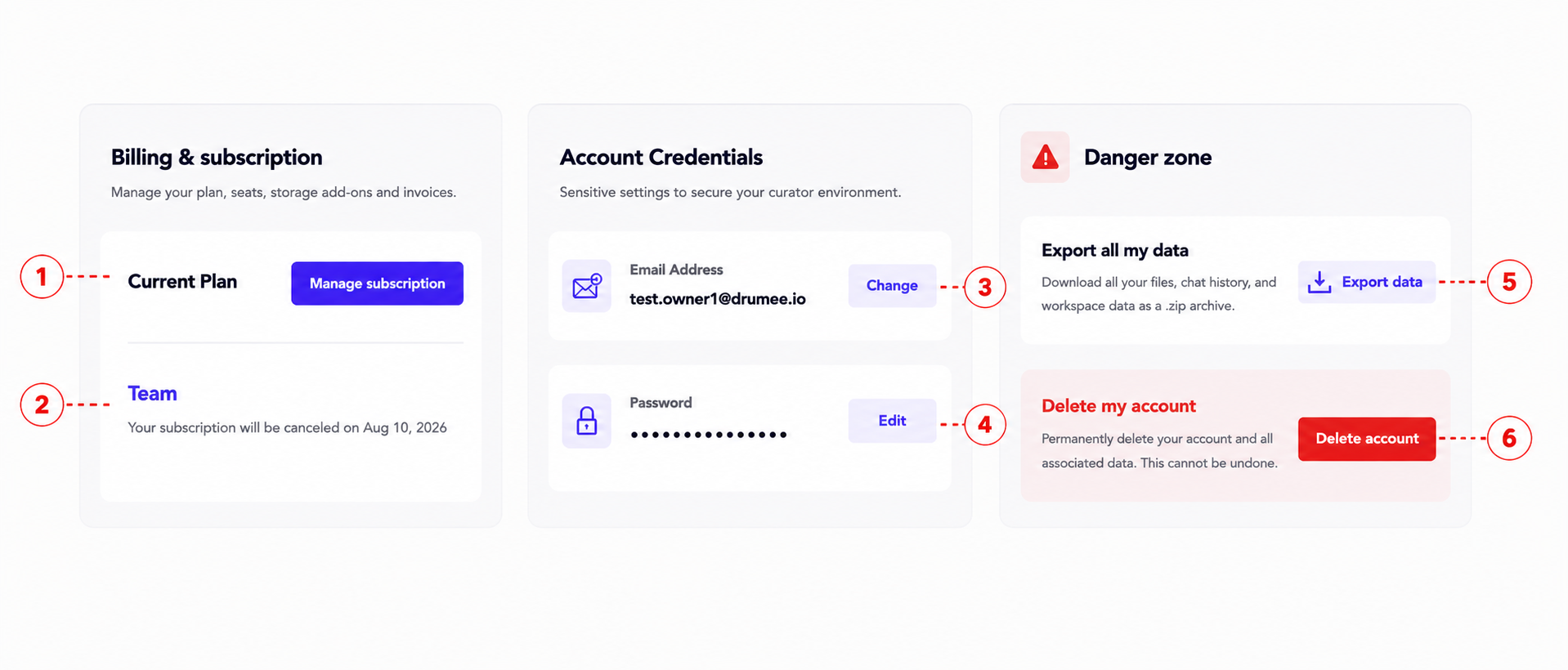
- Current plan: View your current plan and upgrade or manage your subscription.
- Team: Check your active plan and renewal or expiration details.
- Change: Update the email address associated with your Drumee account.
- Edit: Change your password to keep your account secure.
- Export data: Download your files, chat history, and workspace data as a ZIP archive.
- Delete account: Permanently delete your Drumee account and all associated data. This action cannot be undone.
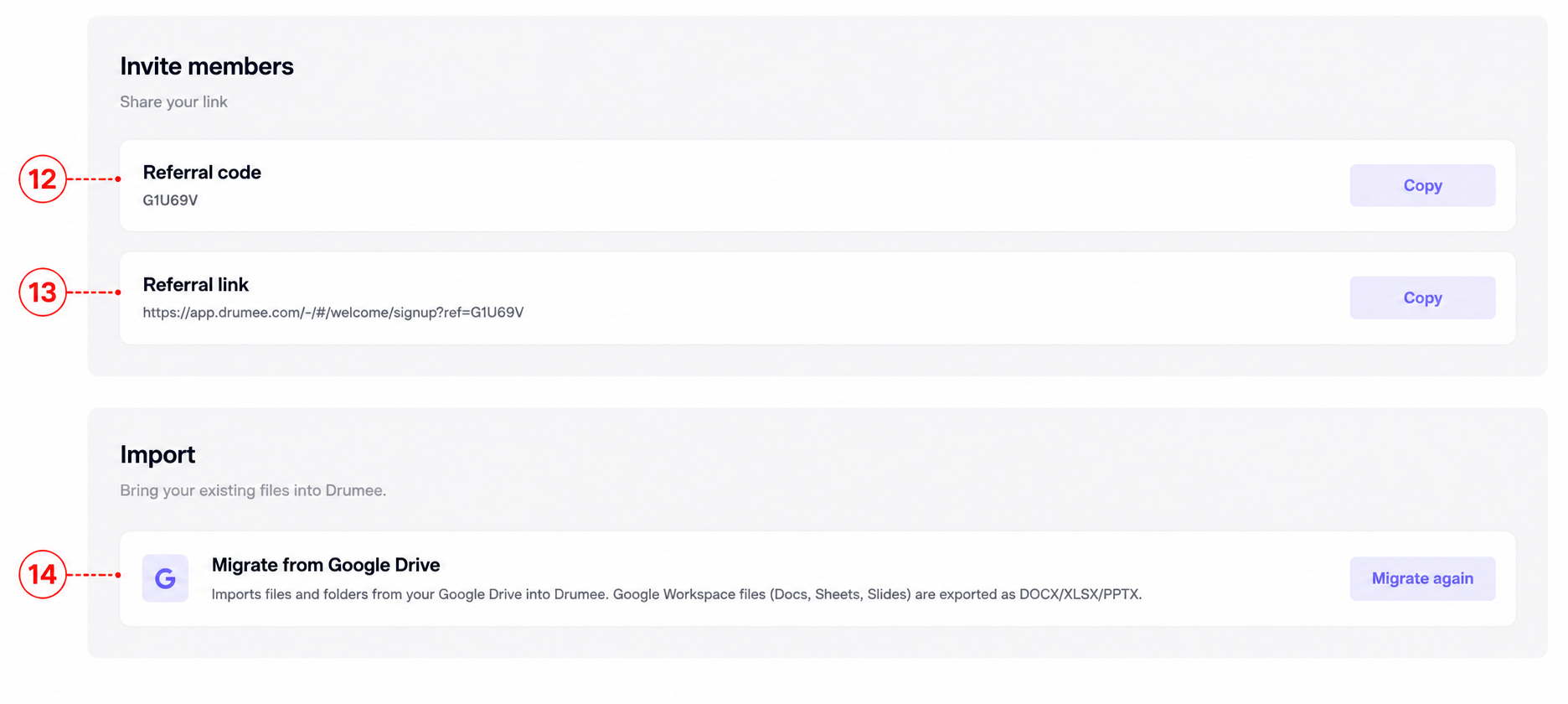
- Referral code: Share your referral code with teammates so they can quickly join your Drumee workspace.
- Referral link: Copy and send your referral link to invite new members. Users can create an account and join your workspace directly through this link.
- Migrate from Google Drive: Import your files and folders from Google Drive into Drumee.
1.3 Admin Console
Admin Console gives workspace owners full control over team members, storage usage, roles, and a complete audit trail of every action.
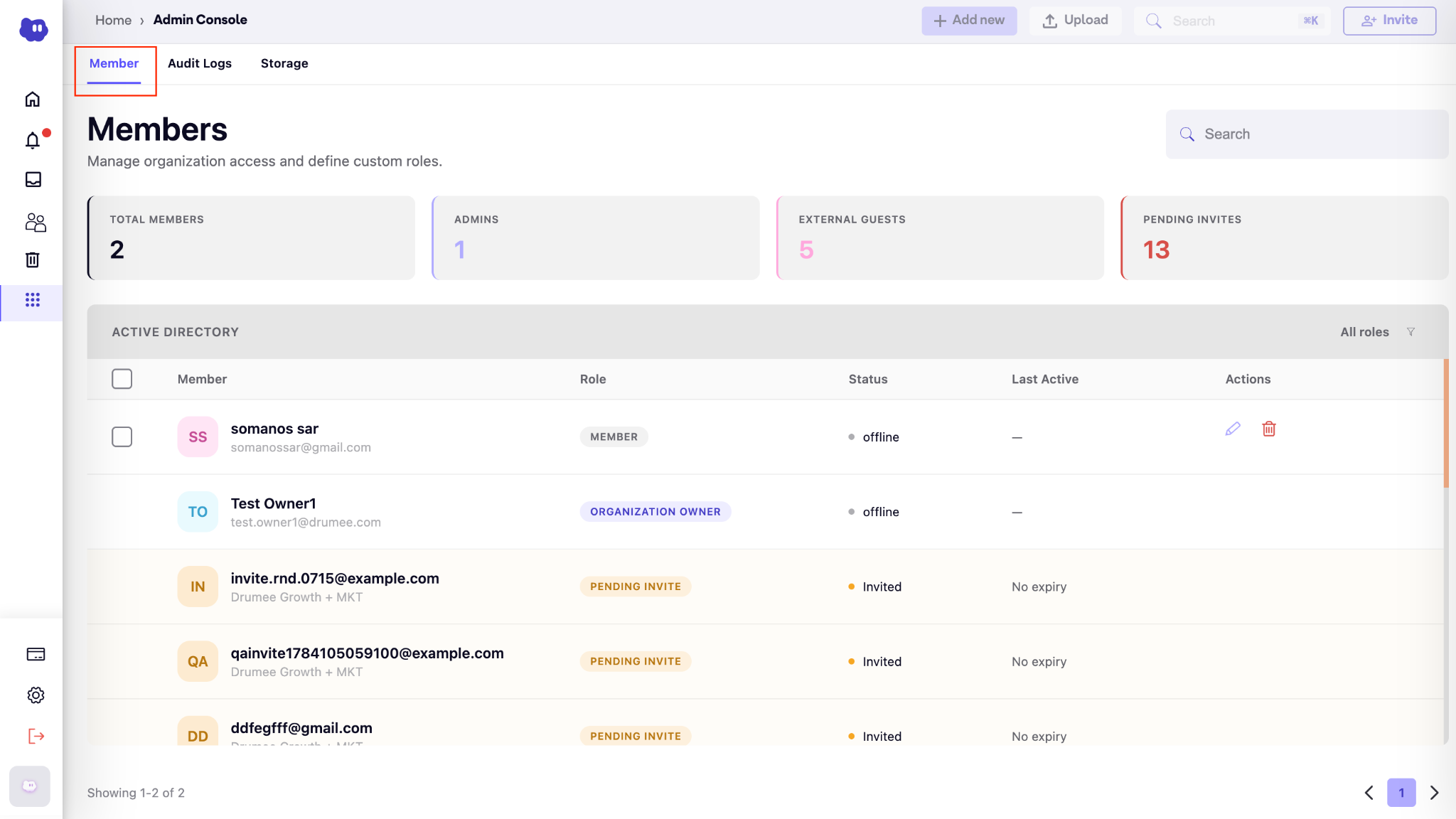
1.3.1 Members
| Feature | What it does |
|---|---|
| Invite members | Add new people to the workspace by email. |
| Remove members | Revoke access for team members who have left. |
| Assign roles | Set permissions at the member level: Viewer, Editor, Admin. |
| Transfer ownership | Only the current Owner can change roles or transfer ownership. |
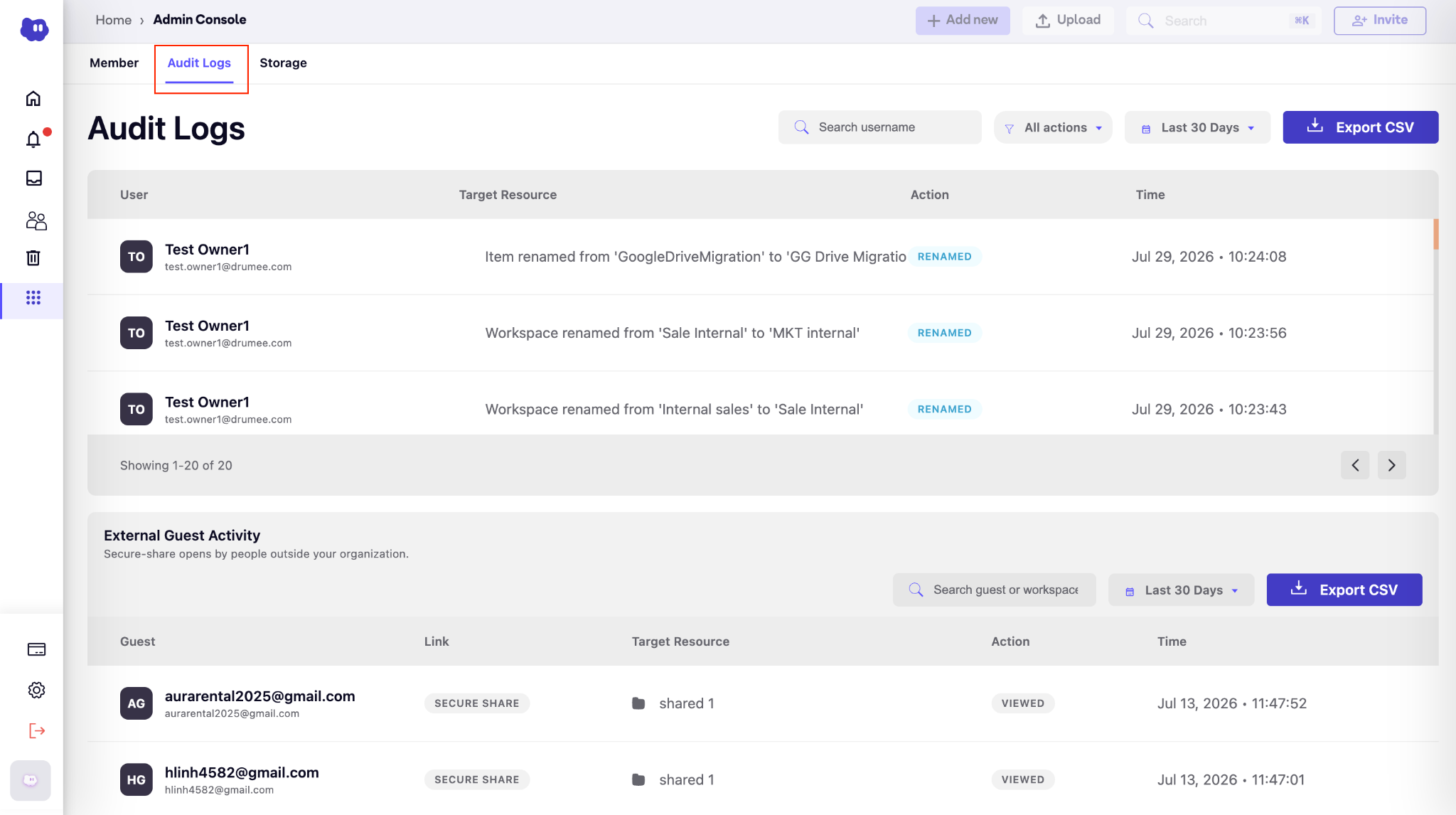
1.3.2 Audit Logs
Full history of every action taken in your workspace:
- Who accessed a file or folder
- What was opened
- What was downloaded
- What was edited
- What was shared, and with whom
- What was deleted
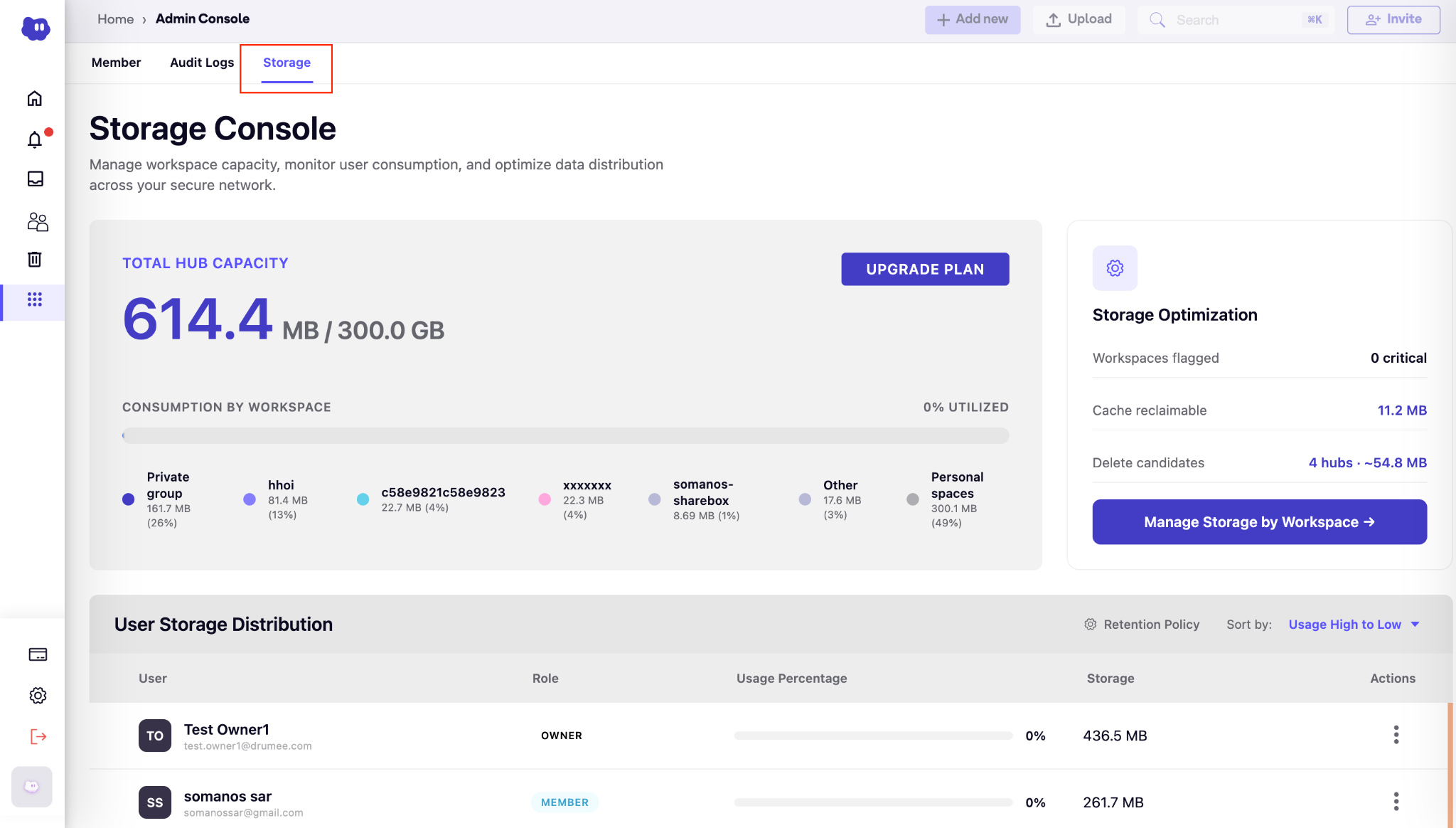
1.3.3 Storage
Monitor and manage storage across the organization:
- Workspace-level usage
- Folder-level usage
- Individual user usage
- Ongoing storage monitoring and alerts
1.4 Files
Single source of truth to upload, organize, preview, and track version history, instead of creating duplicate files.
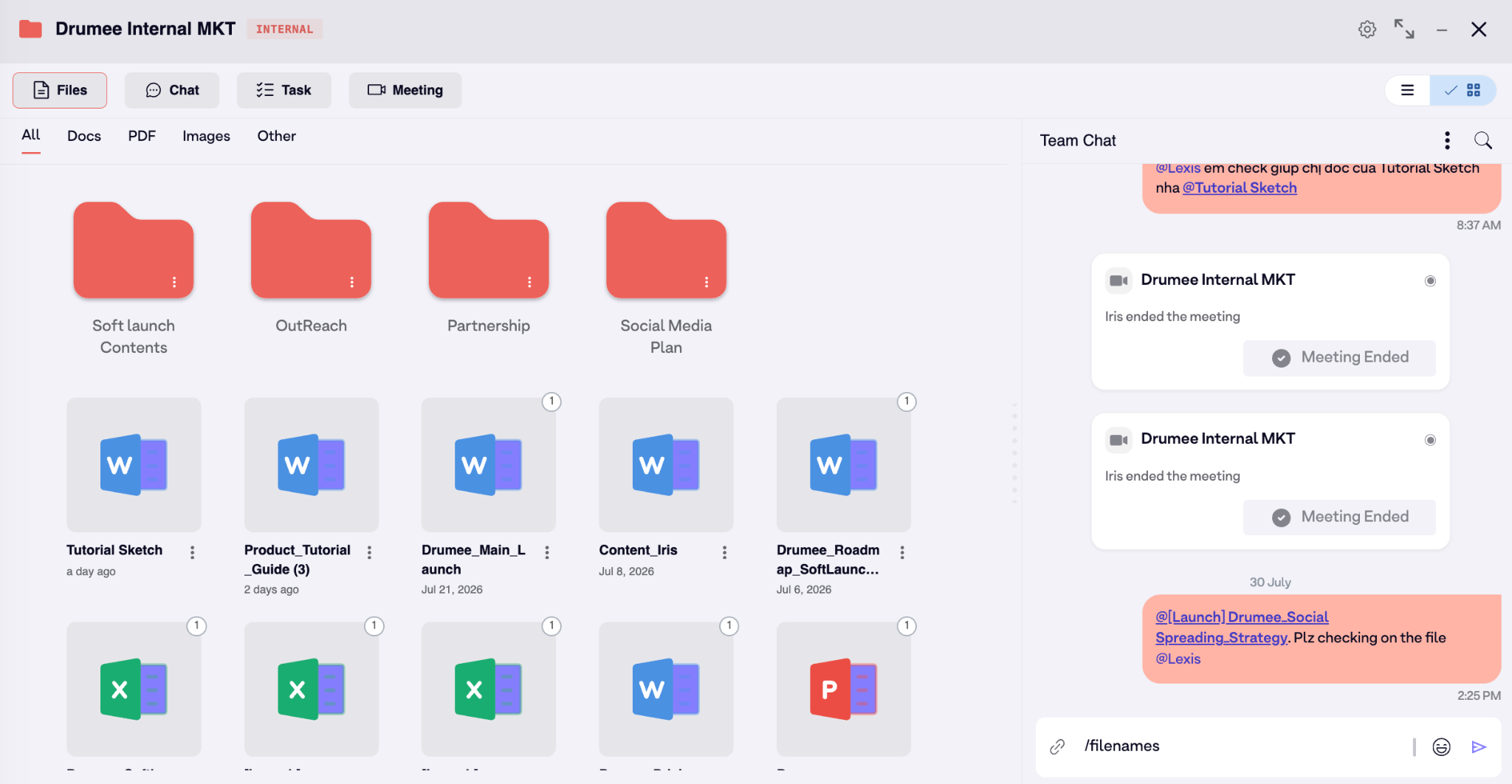
1.4.1 Landscape view
Grid/thumbnail layout of files with previews and dates.
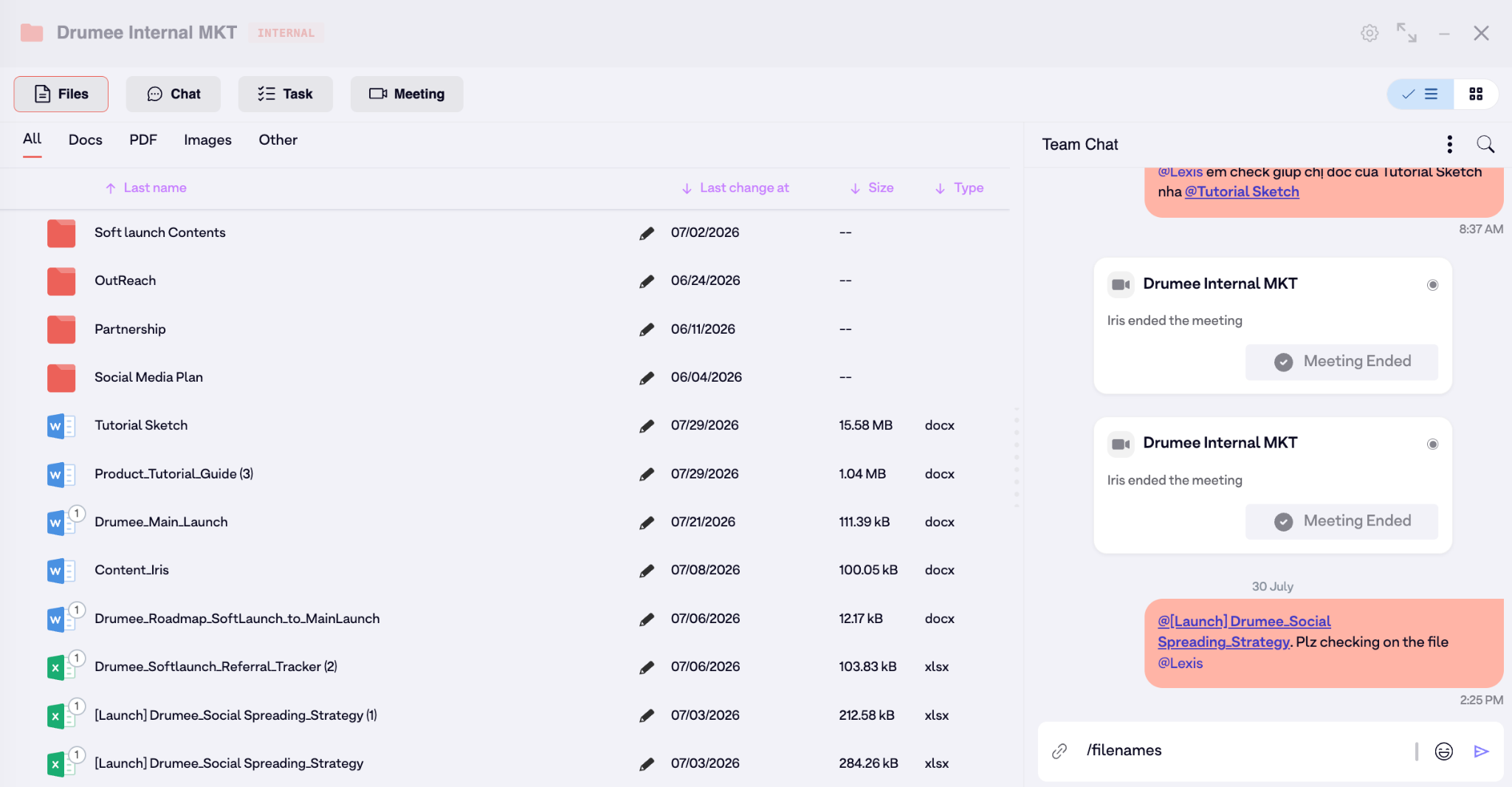
1.4.2 Portrait view
List/table layout of files with columns for name, last change, size and type.
1.5 Task
Manage action items alongside your files and discussions, all in one place.
| Feature | What it does |
|---|---|
| Create tasks | Add new action items directly from within the folder. |
| Assign members | Set a responsible team member for each task. |
| Priority and due dates | Define urgency and deadlines. |
| Multiple views | Switch between Board, Calendar, Gantt, and List views. |
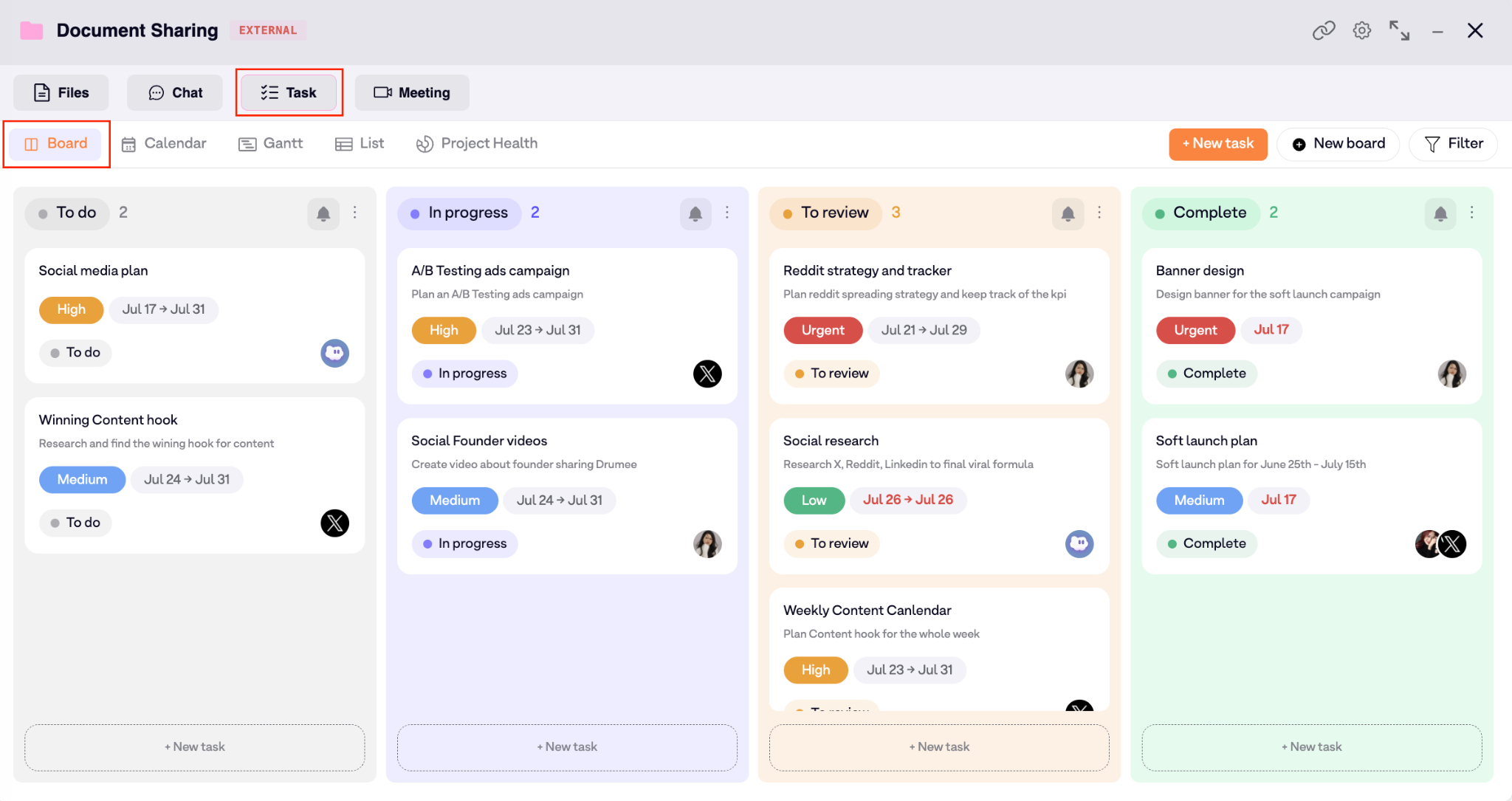
1.5.1 Board view
Kanban columns showing tasks by status for easy drag-and-drop updates.
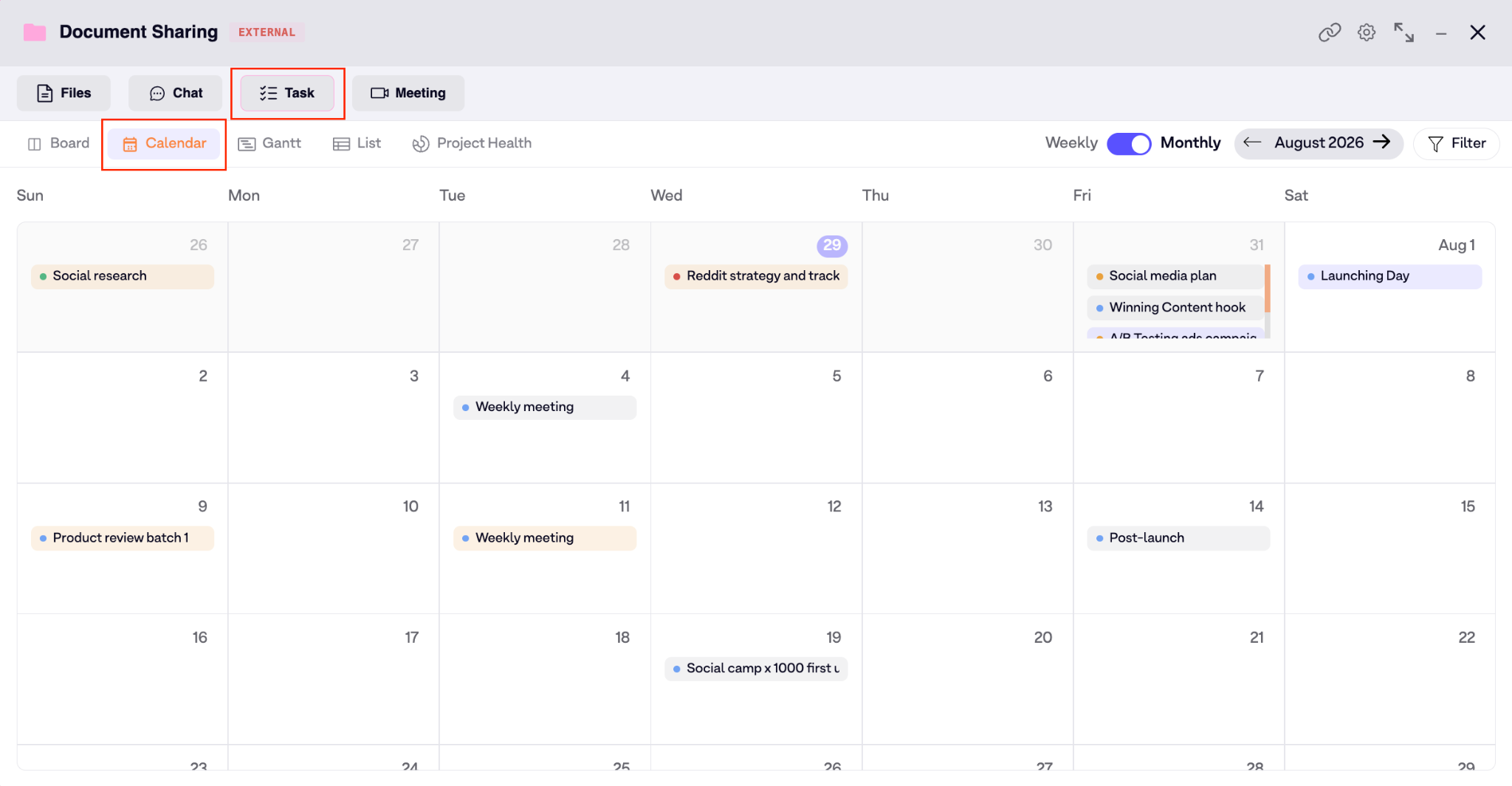
1.5.2 Task in Calendar view
Tasks displayed on a calendar by due dates for quick scheduling overview.
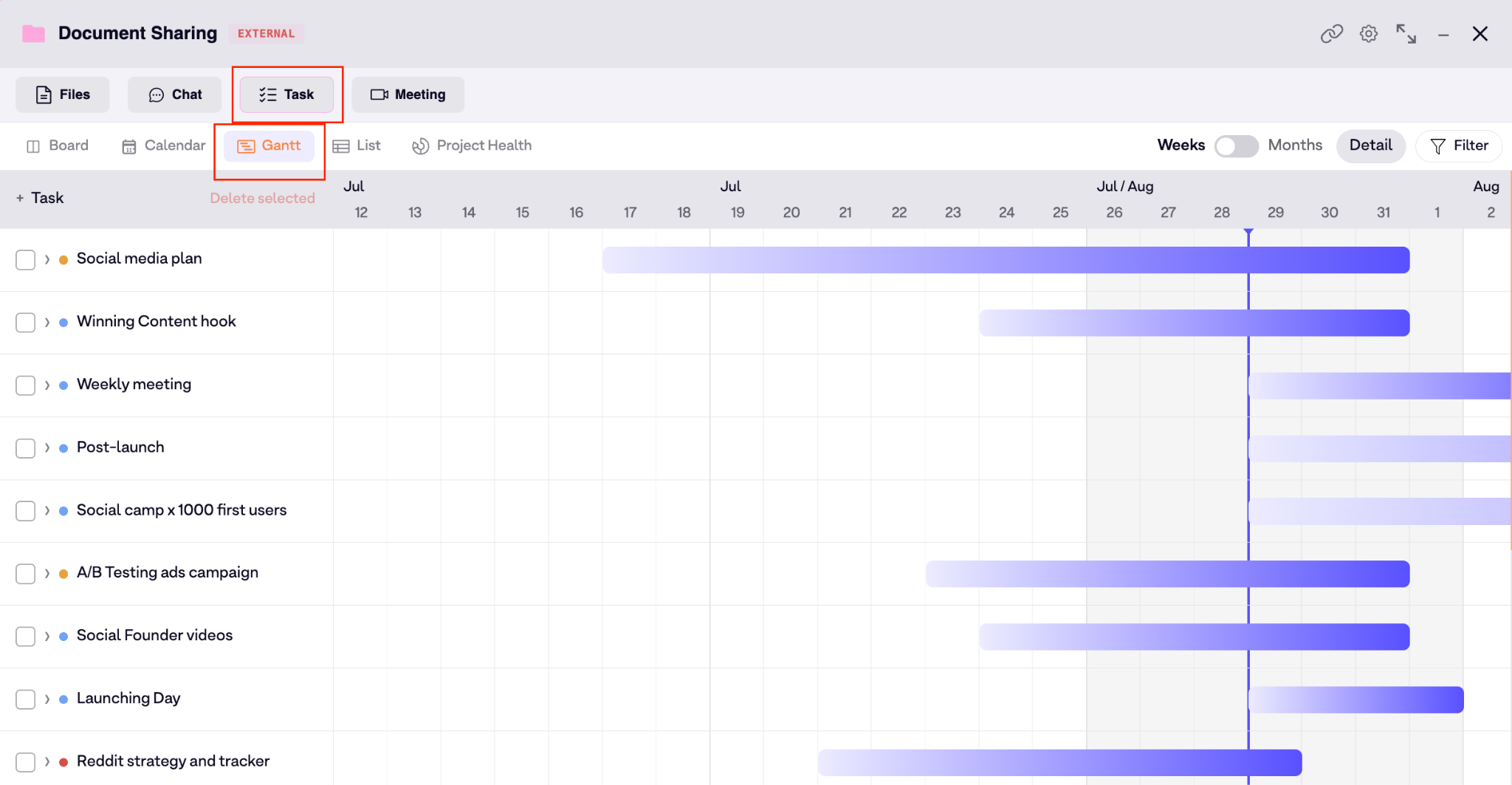
1.5.3 Task in Gantt view
Horizontal timeline bars showing task durations and schedules.
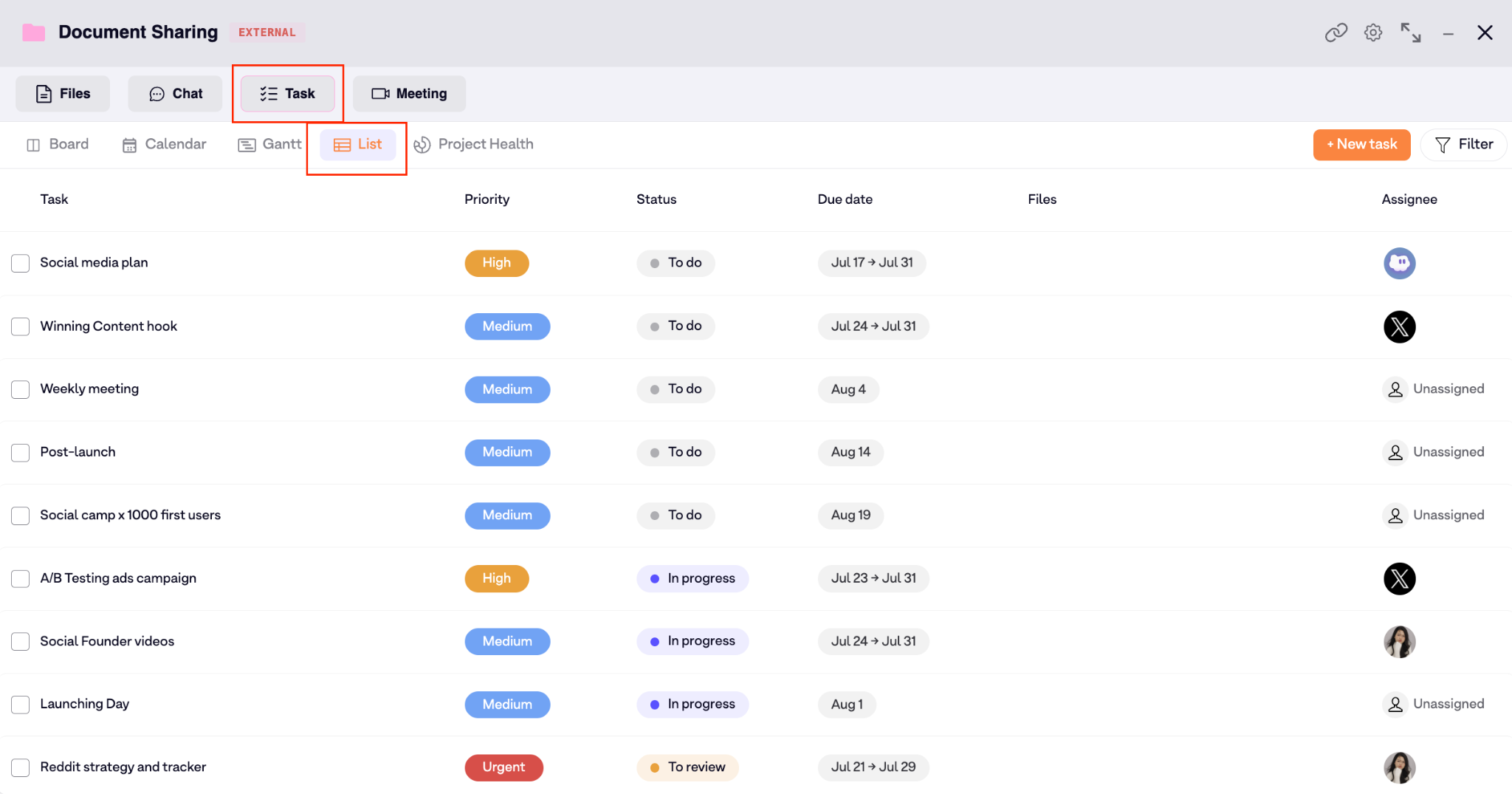
1.5.4 Task in List view
Simple linear list of all tasks with key details.
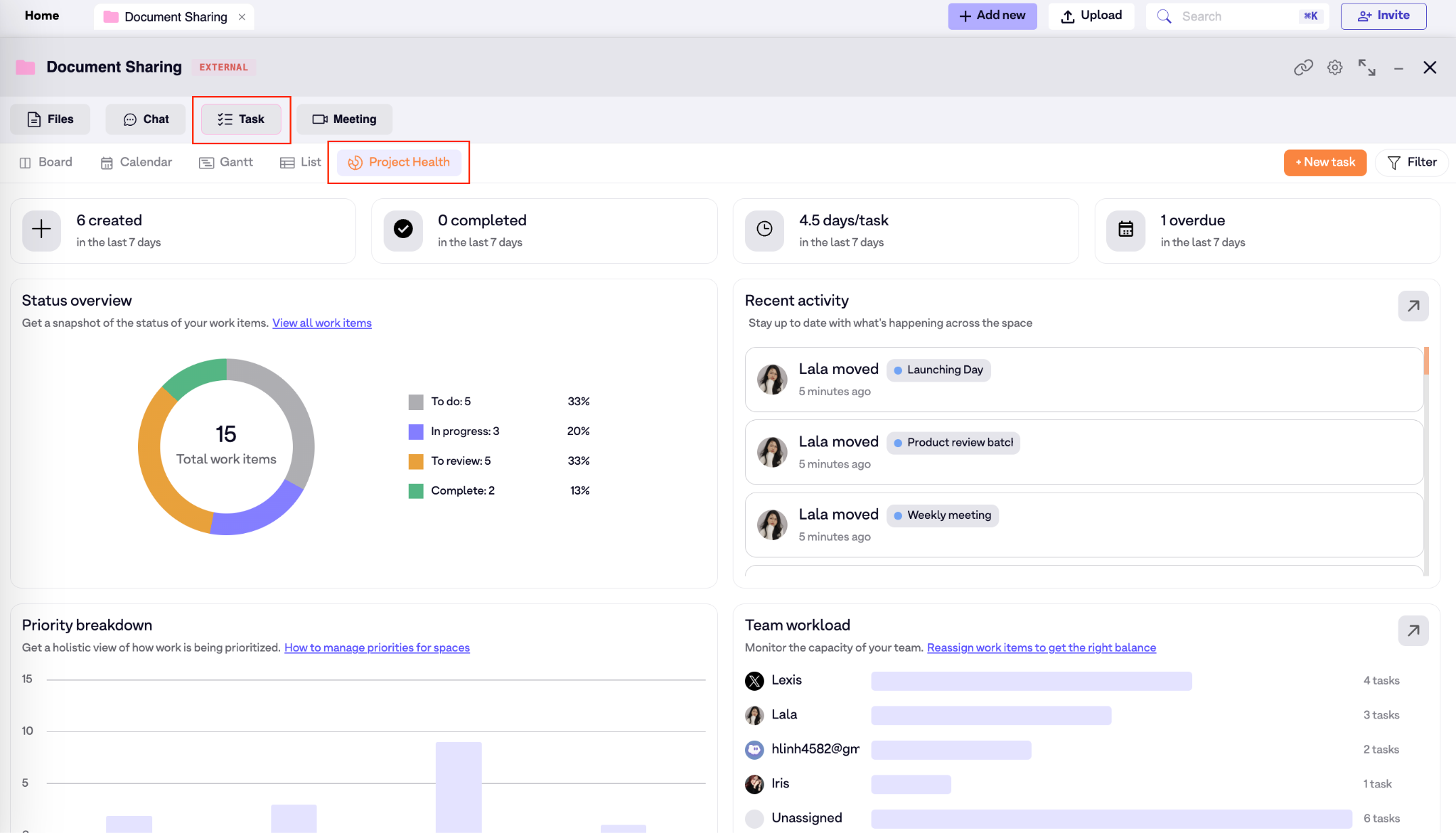
1.5.5 Project health
Dashboard with metrics, charts, and summaries of project status and workload.